What You Will Learn in This XMLTV Guide
Have you ever flicked through a hundred channels on your IPTV service, only to be greeted by a blank screen that reads “No Information”? It is the digital equivalent of walking into a library where every book spine has been sanded smooth. You know the content exists, but you cannot find what you want. That frustration is exactly what the XMLTV format explained in this article is designed to solve. As we march toward XMLTV IPTV 2026, the ability to read, understand, and manipulate Electronic Program Guide (EPG) data has become not just a technical curiosity but a fundamental skill for anyone who wants their streaming experience to feel as polished as a broadcaster’s control room. Understanding the XMLTV format explained in detail is the first step to mastering EPG data.
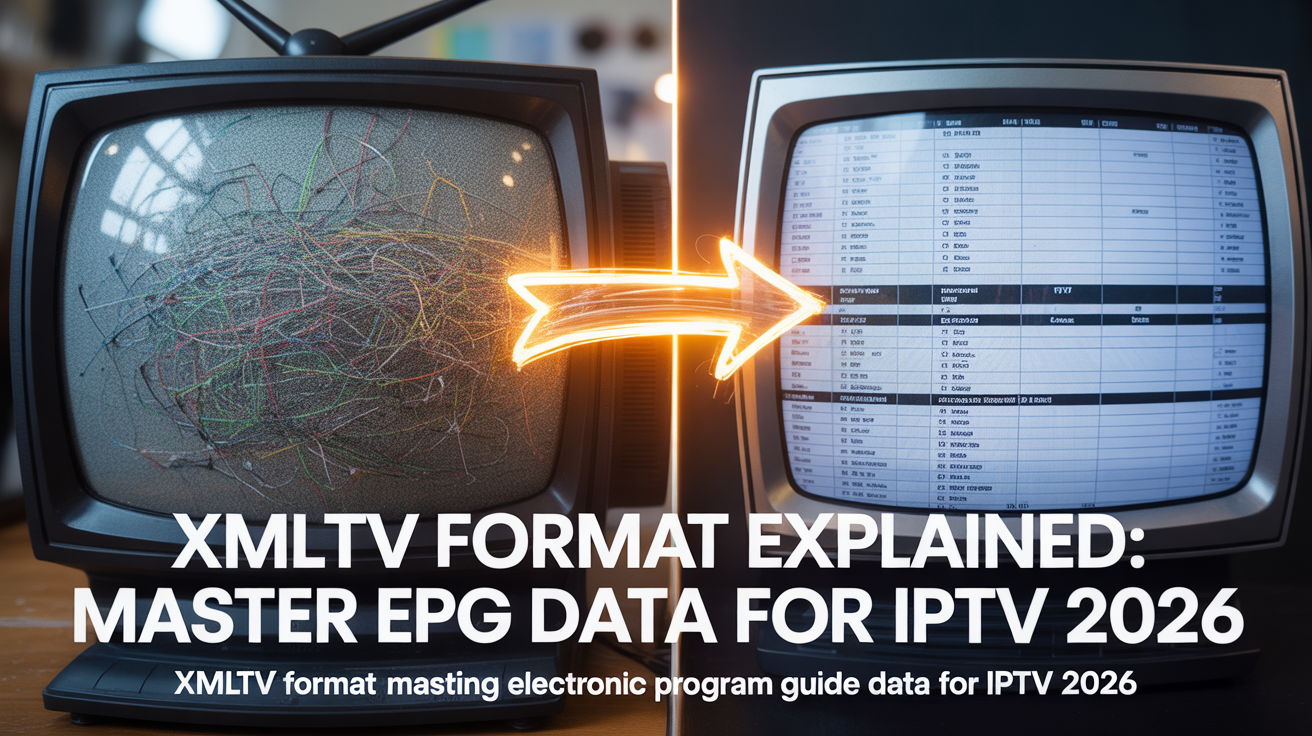
In this guide, you will achieve a complete mastery over the XMLTV ecosystem. You will learn what an XMLTV file actually is, how its structure works on a granular level, how it differs dramatically from the M3U playlist you already use, and how to generate your own EPG data. By the end, you will be able to diagnose a broken guide, fix it, or even build one from scratch. The XMLTV format explained here will serve as a thorough reference. Let us begin.
Prerequisites: What You Need to Follow This XMLTV Guide
Before we dive into the code and structure, assemble your toolkit. You do not need to be a software engineer, but a little curiosity goes a long way. Here is what you will need:
- A text editor (Notepad++ on Windows, TextEdit on Mac, or any code editor like VS Code).
- A valid M3U playlist from your IPTV provider (you will use the channel IDs to map EPG data).
- A reliable internet connection to download sample XMLTV files or test your own.
- Access to a web server or local storage where you can host the XMLTV file (most IPTV players allow you to enter a URL).
- A basic understanding of XML syntax (tags, elements, attributes).
If you do not yet have an IPTV provider, you might want to check out the best IPTV provider 2026 as a starting point for a service that often works well with custom EPG data.
Step-by-Step: XMLTV Format Explained for IPTV 2026
Step 1: Understand the Core Structure of an XMLTV File
Think of an XMLTV file as a digital television schedule printed on a giant scroll. Every scroll has a header, a list of TV channels, and a list of programmes. In XML terms, the root element is <tv>. Inside that, you will find two main types of children: <channel> elements and <programme> elements. Each <channel> defines a TV station, and each <programme> defines a show airing on that channel. The XMLTV file structure is hierarchical, human-readable, and designed to be parsed by IPTV apps like TiviMate, IPTV Smarters, or VLC. The core of the XMLTV format explained is this structural relationship between channels and programmes.
<?xml version="1.0" encoding="UTF-8"?>
<tv generator-info-name="MyGenerator" source-info-name="MySource">
  <channel id="example.channel">
    <display-name lang="en">Example Channel</display-name>
    <icon src="http://example.com/icon.png" />
  </channel>
  <programme start="20260601000000 +0000" stop="20260601010000 +0000" channel="example.channel">
    <title lang="en">The Morning Show</title>
    <desc lang="en">A daily news program covering current events.</desc>
  </programme>
</tv>
Notice the timestamps: they use the format YYYYMMDDHHMMSS +0000 (UTC time). This is non-negotiable. If you get the timezone wrong, your guide will show everything at the wrong hour.
Step 2: Map Your M3U Channel IDs to XMLTV Channel IDs
Here is where the magic happens. Your M3U playlist contains lines that look like this: #EXTINF:-1 tvg-id="CNN.us" tvg-name="CNN" tvg-logo="...",CNN. The tvg-id attribute is the key that connects your playlist to the XMLTV file. The XMLTV vs M3U relationship is complementary: M3U tells your IPTV player which streaming URLs to fetch, while XMLTV tells it what is playing on each URL at any given time. Without matching IDs, you get a blank guide. To fix this, you must ensure that the channel id in your XMLTV file exactly matches the tvg-id in your M3U file. This is the single most common failure point when setting up EPG, and it is a critical part of the XMLTV format explained in practice.
Step 3: Generate a Valid XMLTV File Manually or with Tools
If you have only a few channels, you can write the XML by hand. For anything larger than ten channels, use a generator tool like WebGrab+ Plus or EPG Collector. These tools scrape TV schedules from online sources and produce a proper XMLTV file. Alternatively, many IPTV providers already supply an EPG URL. But if your provider does not, or if the provided EPG is inaccurate, generating your own is a viable solution. For example, after generating a custom EPG, you can combine it with an excellent service like the one described in our Evestv IPTV review for Firestick to get a premium experience.
Step 4: Host and Serve the XMLTV File
Your IPTV player needs to access the XMLTV file via a URL (or a local file path). The easiest method is to upload the file to a web server or use a free static hosting service like GitHub Pages or Dropbox public links. Once hosted, copy the direct URL and paste it into your IPTV app’s EPG settings. If you are testing locally on a Firestick, you can even use the Downloader app to load the file from a local web server running on your PC.
Step 5: Validate and Troubleshoot the EPG Output
After loading the XMLTV file, check your IPTV app for guide data. If channels are missing, the tvg-id mapping is likely wrong. If times are offset, check your timezone handling. If nothing appears, ensure the XML file is well-formed (no missing closing tags). Use an online XML validator to check your file’s syntax. This step is where a little patience pays off handsomely, as applying the XMLTV format explained correctly avoids most common issues.
XMLTV vs M3U: Understanding the Critical Differences
One of the most common confusions in the IPTV world is mixing up M3U and XMLTV. They are not competitors; they are dance partners. M3U is a playlist format that tells your player where the streams are (the “where”), while XMLTV is a schedule format that tells your player what is on (the “what”). Think of M3U as the address of a cinema, and XMLTV as the showtimes board inside the lobby. Without M3U, you cannot watch anything. Without XMLTV, you are walking in blind. The XMLTV vs M3U distinction is crucial for anyone building a robust IPTV setup. Both formats work together seamlessly when configured correctly. This illustrates why the XMLTV format explained should not be confused with M3U.
| Feature | M3U Playlist | XMLTV File |
|---|---|---|
| Purpose | List stream URLs and channel metadata | Provide programme schedule data |
| File Extension | .m3u or .m3u8 | .xml or .xmltv |
| Content | Channel names, logos, stream URLs | Show titles, descriptions, start/stop times |
| Dependency | Required for playback | Optional for playback, required for guide |
| Update Frequency | Rarely changes (static) | Changes daily (dynamic) |
Common Mistakes to Avoid When Working with XMLTV
Even experienced IPTV users trip over these pitfalls. Avoid them and you will save hours of frustration.
- Mismatched IDs: The most frequent error. If the
channel idin XMLTV does not match thetvg-idin M3U, the EPG will be blank for that channel. - Wrong Timezone: XMLTV timestamps must be in UTC. Many users mistakenly use local time, causing shows to appear shifted by hours.
- Invalid XML Syntax: A single missing closing tag or unescaped character (like & instead of & ) can break the entire file.
- Overly Large Files: An XMLTV file for 1000 channels with 14 days of data can exceed 50MB, which may timeout older IPTV apps. Use gzip compression or limit the data range.
- Ignoring the Generator Tag: Some IPTV players look for the
generator-info-nameattribute in the root<tv>tag. Omitting it may cause the file to be ignored.

How to Use XMLTV with Popular IPTV Players in 2026
In the XMLTV IPTV 2026 landscape, almost every major app supports EPG integration. Here is a quick primer for the most common players:
TiviMate
Go to Settings > EPG > EPG Source and enter your XMLTV URL. TiviMate will fetch and cache the data for smooth scrolling. If you have multiple playlists, you can assign different EPG sources to each.
IPTV Smarters Pro
Navigate to Settings > EPG & Catch-up > EPG Source URL. Paste your XMLTV link and click Save. The app will load the guide in the background.
VLC Media Player
VLC does not natively support XMLTV EPG in the same way, but you can use the “View > Playlist” option with an XMLTV URL as a separate network stream. For full integration, a dedicated IPTV app is recommended.
Troubleshooting FAQ: XMLTV Format Explained
1. Why is my EPG completely blank after loading the XMLTV file?
The most likely cause is a mismatch between the tvg-id in your M3U playlist and the channel id in the XMLTV file. Open both files and verify the IDs match exactly, including case sensitivity. This is a common pitfall even after thoroughly reading the XMLTV format explained.
2. How do I fix incorrect show times on my IPTV guide?
Check the timestamp format in your XMLTV file. All start and stop times must be in UTC with the format YYYYMMDDHHMMSS +0000. If you used local time, convert the entire file to UTC before serving.
3. Can I use the same XMLTV file for multiple IPTV players?
Yes, absolutely. The XMLTV format is a standard, and any player that supports EPG should be able to read the same file, as long as the channel IDs match each player’s M3U playlist.
4. What is the best tool to generate an XMLTV file automatically?
WebGrab+ Plus is the most popular and powerful option. It supports hundreds of TV sources worldwide and runs on Windows, macOS, and Linux. For simpler needs, EPG Collector is a user-friendly alternative.
5. How often should I update my XMLTV file?
Daily is standard. Most IPTV providers update their EPG once every 24 hours. Set up a cron job or a scheduled task to fetch fresh data each morning.
6. What is the difference between XMLTV and JSON EPG?
XMLTV is an XML-based format, while JSON EPG is JavaScript-based. JSON files are generally smaller and easier to parse for web applications, but XMLTV remains the dominant standard in IPTV apps due to wider adoption.
7. Can I edit an XMLTV file manually?
Yes, you can open it in any text editor and make changes. Be careful to maintain valid XML syntax. For large files, use an XML editor that highlights errors.
8. My IPTV app supports catch-up TV. Does XMLTV affect that?
Yes, catch-up TV relies on accurate EPG data to know which programmes have already aired and are available for replay. A well-formed XMLTV file is essential for catch-up features to work correctly. For more on catch-up IPTV, see IPTV service with catch-up TV.
9. How do I host an XMLTV file for free?
Use GitHub Pages, Dropbox public link, or a free web hosting service like 000webhost. Ensure the file is accessible via a direct URL and does not require authentication.
10. Is XMLTV still relevant in 2026?
Absolutely. While newer technologies like JSON EPG exist, XMLTV remains the backbone of IPTV EPG due to its simplicity, wide support, and extensive tool ecosystem. It is not going anywhere, and mastering the XMLTV format explained here is a valuable skill.
Ready to Transform Your IPTV Experience?
You now possess the knowledge to conquer the blank guide. The XMLTV format explained above is your key to unlocking a polished, professional IPTV setup that rivals traditional cable. Do not settle for “No Information” any longer. Generate your own XMLTV file today, host it, and watch your TV guide come alive. If you want a provider that already plays well with custom EPG, test our service risk-free with a free IPTV trial 2026 and see the difference for yourself.