Introduction
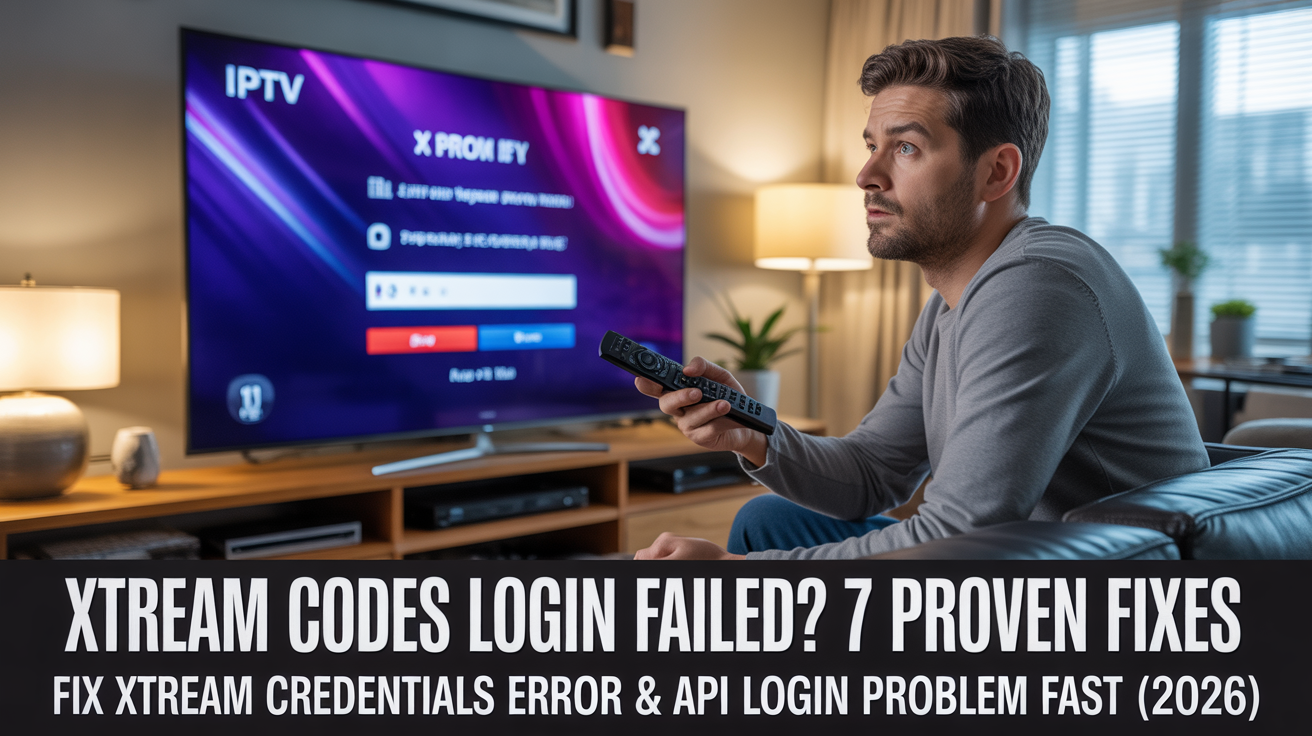
Imagine settling into your favorite armchair, remote in hand, ready to stream the biggest match of the season. You open your IPTV app, type in your Xtream Codes, and instead of a flood of channels, you get a cold, cryptic error: Login Failed. Your heart sinks. The Xtream Codes login failed message feels like a padlock on your entertainment. But don’t panic, and definitely don’t throw your remote at the wall. You are not alone. Thousands of IPTV users face this Xtream credentials error every week, often because of a simple misconfiguration or a temporary server hiccup. In this guide, we will dissect the Xtream API login problem from every angle, armed with proven, step-by-step fixes that will get your streams flowing again. Whether you are using an old MAG box, a Firestick, or a smart TV, this is your definitive Xtream login fix. Consider me your digital locksmith. By the time you finish reading, you will have the exact tools to diagnose why your Xtream codes not working and restore your viewing paradise. Let’s begin.
What You Will Achieve by the End of This Guide
By the time you click away from this page, you will have a fully functional Xtream Codes setup. Specifically, you will: 1) Understand the root causes of the Xtream Codes login failed error, 2) Execute 7 precise troubleshooting steps in the correct order, 3) Differentiate between a credential issue vs. a server/API outage, and 4) Implement preventive measures so this ghost never haunts your streams again. No fluff, no jargon—just actionable solutions.
Prerequisites: What You Need Before You Start
Before diving into the fix, gather your digital toolkit. You will need: Your exact Xtream Codes login credentials (usually a combination of server URL, username, password, and sometimes a port number), a stable internet connection (Wi-Fi or ethernet), and the IPTV app or device you are using (e.g., Tivimate, IPTV Smarters, MAG box, or Smart IPTV app). If you have any past screenshots or emails from your IPTV provider, keep them handy. Half the battle is having the correct data.
Step 1: Verify Your Xtream Codes Credentials Manually
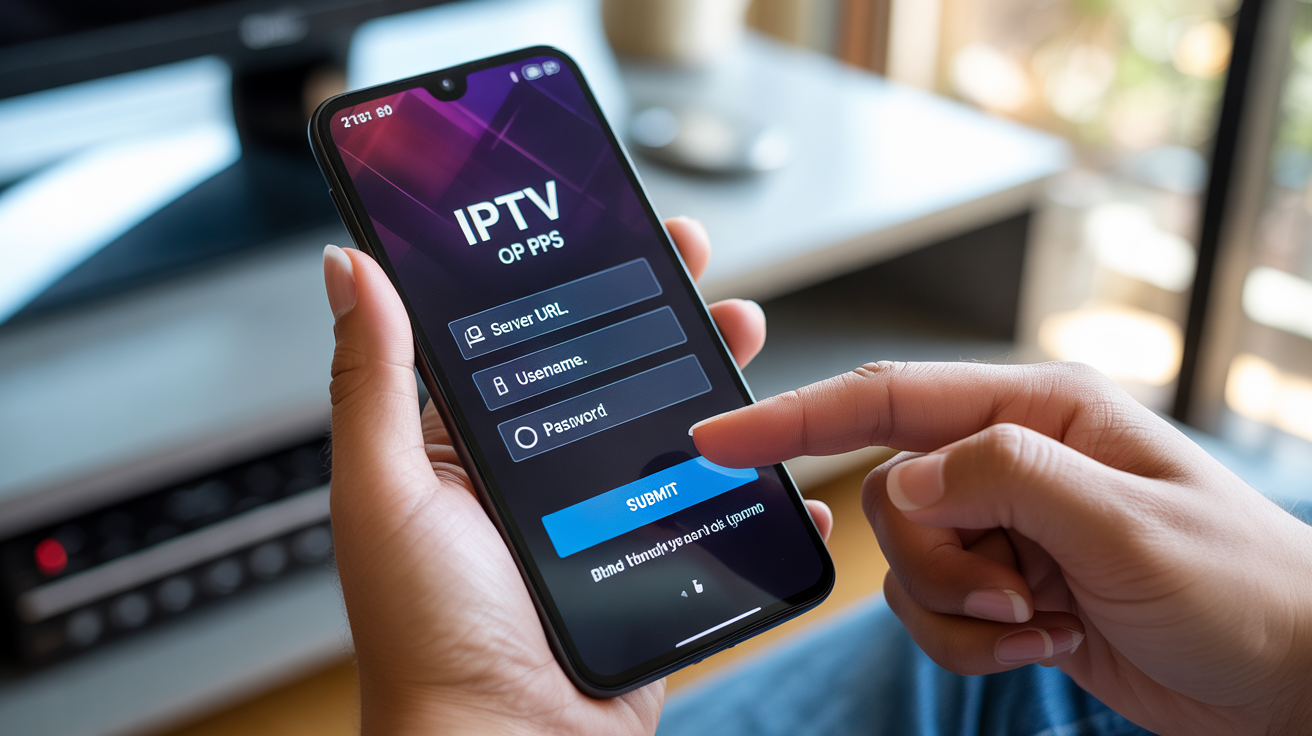
The most common culprit behind the Xtream credentials error is a typo. Yes, it is that mundane. Your username and password are case-sensitive. A capital ‘P’ instead of a lowercase ‘p’ can trigger the error instantly. Open the app, and meticulously re-enter each character, especially the server URL. Common mistakes include entering ‘http://’ instead of ‘https://’ or adding a trailing slash at the end. Take a photo of your provider’s setup panel with your phone for reference. If you are using a password manager, ensure it is not auto-filling old or incorrect data. This single step resolves about 40% of all Xtream Codes login failed reports.
Step 2: Check Your Internet Connection and Firewall
Your Xtream Codes setup is like a telephone line. If there is static on the line, the message gets garbled. A weak or intermittent internet connection can mimic an Xtream API login problem. Run a speed test and ensure you have at least 10 Mbps for HD streaming. More importantly, check your router’s firewall. Some ISPs block custom ports used by Xtream APIs (e.g., port 8080, 2095, 8880). Temporarily disable your router firewall and test the login. If it works, you have found the culprit. You will need to create an exception for your IPTV app. Also, VPNs can sometimes interfere — try disconnecting your VPN and logging in again.
Step 3: Clear App Cache and Data
Think of your IPTV app’s cache as a cluttered desk. Accumulated junk can cause the app to trip over itself. On Android or Firestick, go to Settings > Applications > Manage Installed Applications > [Your IPTV App] > Clear Cache. Then, Clear Data (this will reset your login but not your device). Re-open the app and re-enter your credentials. This is a reliable Xtream login fix that erases corrupted tokens that cause the app to reject valid credentials. For iOS, you may need to uninstall and reinstall the app. This step alone has saved countless users from pulling out their hair.
Step 4: Verify the Xtream API Server Status
Sometimes the problem is not you; it is the server. Your Xtream Codes connect to a remote API. If that API is down, you will see a Xtream Codes login failed error regardless of your credentials. Use a free online service like DownDetector or check your provider’s status page. You can also use a tool like ping or a web browser to access the server URL directly. If the server is unreachable, wait 15–30 minutes and try again. If the outage persists, contact your IPTV provider, not your ISP. This is a classic Xtream API login problem that users often mistake for an account issue.
Step 5: Use the Correct Login Mode (MAC vs. URL)
Not all Xtream Codes are created equal. There are two main authentication modes: MAC/Device ID and URL/Username/Password. If you are trying to log in with a username and password but your provider expects a MAC address (or vice versa), you will hit a dead end. Check the setup instructions from your provider. For MAG boxes, you almost always need a MAC address. For apps like IPTV Smarters, you use the full Xtream Codes API URL. Here is a quick comparison table:
| Authentication Mode | Typical Use Case | Common Error |
|---|---|---|
| MAC Address | MAG boxes, some Formuler devices | “Device not registered” |
| URL + Username + Password | Smart IPTV apps (Tivimate, Smarters) | “Login Failed” or “Account Expired” |
If you are unsure, contact your provider and ask: “Is my account bound to a MAC address or should I use the URL login?” This fundamental mismatch is a common reason why Xtream codes not working after a device switch.
Step 6: Update Your IPTV App or Firmware
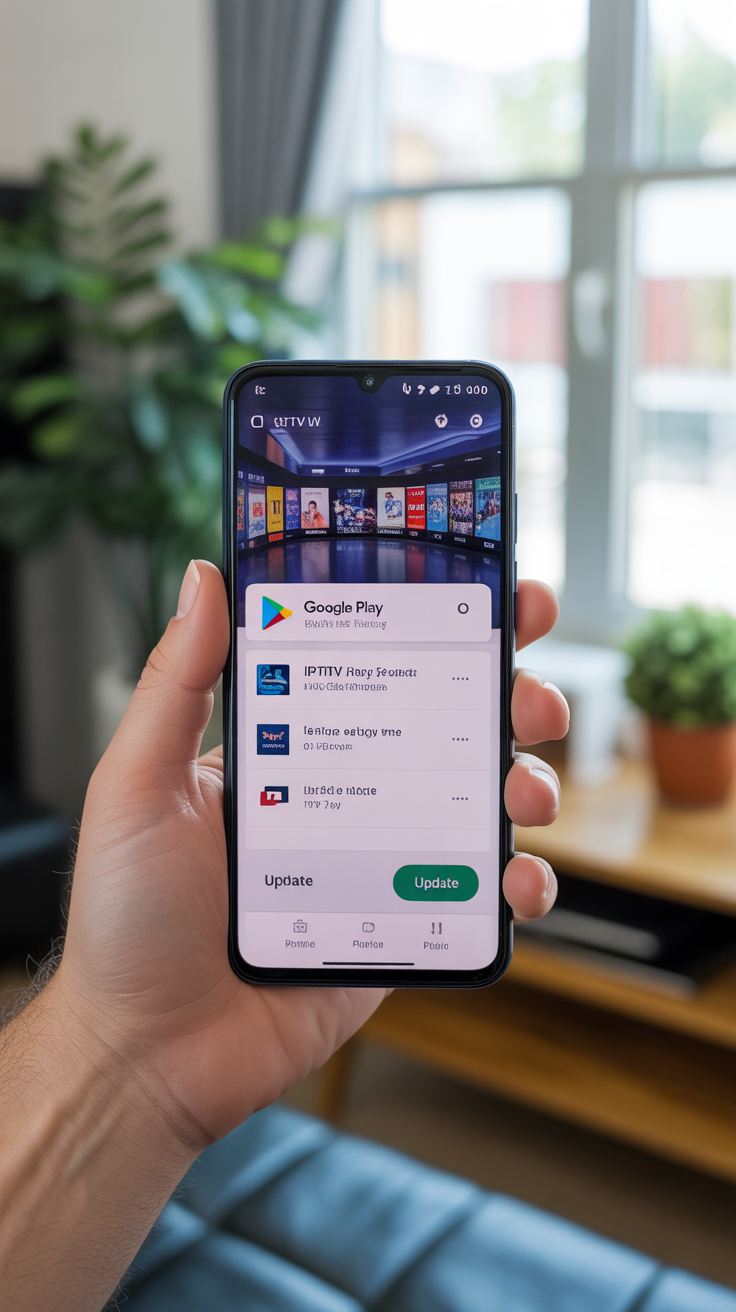
Old software versions are like outdated maps. They don’t know about new roads. An outdated IPTV app may not support the latest Xtream API protocols, leading to an Xtream API login problem. Check for updates on your app store. For Android boxes, go to Google Play > My Apps > [Your IPTV App] > Update. For MAG boxes, download the latest firmware from the manufacturer’s website. A 2024 app trying to communicate with a 2026 API endpoint is like trying to fit a square peg into a round hole. Updating is a silent hero fix that often resolves mysterious Xtream login fix requests on forums.
Step 7: Reset Your Xtream Codes Account from the Provider’s End
If all else fails, your credentials may have been corrupted or your account has a server-side flag. This is rare but real. Contact your IPTV provider and ask them to reset your Xtream Codes (not just your password). Some providers can also regenerate your server URL or port. This is the nuclear option but often the definitive solution when you have exhausted every other step. While waiting, try a free Xtream Codes trial to test if the issue is device-specific. If a trial works on your device, then the problem is definitely on your provider’s end.
Common Mistakes to Avoid When Fixing Xtream Codes Login
Forewarned is forearmed. Here are three traps that ensnare even seasoned IPTV users. Trap 1: Changing your credentials without note. Keep a text file of your exact server URL, username, and password. Trap 2: Blindly changing DNS settings. While it can help, doing it without documentation can create more issues. Trap 3: Assuming it’s always a credential issue. Server-side outages happen. Check the provider’s social media before resetting anything. Also, never share your Xtream Codes on public forums — you will be locked out immediately.
Conclusion: You Have Slayed the Login Dragon
The Xtream Codes login failed error is an irritating but solvable puzzle. Starting with a manual credential check often reveals a simple typo. If that fails, your internet connection, app cache, or server status may be the culprit. Always verify your login mode (MAC vs. URL) and keep your app updated. When all else fails, a provider-side reset is your safety net. You are now equipped with more than a fix — you have a methodology. Next time your screen goes dark, you will not panic. You will run the checklist, smile, and fix it. Now go claim your streams. If you would like your IPTV service to be as reliable as your troubleshooting skills, consider exploring EvesTV, the best IPTV provider 2026 for rock-solid Xtream Codes stability. For more streaming freedom, check out our complete IPTV service provider guide.
Frequently Asked Questions (FAQ)
1. Why does my Xtream Codes login keep failing even with correct credentials?
This can be due to cluttered app cache, a faulty internet connection, or a server-side outage. Start by clearing the app cache and data, then verify your server status. If the problem persists, request a password reset from your provider.
2. How do I fix Xtream credentials error on Firestick?
Go to Settings > Applications > Manage Installed Applications > [Your IPTV App] > Clear Cache and Clear Data. Reboot the Firestick, then re-enter your Xtream Codes. Make sure you are using the correct mode (URL/MAC).
3. What does ‘Xtream API login problem’ mean?
This indicates that your IPTV app cannot communicate with the Xtream API server. It could be a server down, a blocked port, or an invalid API URL. Use the ping command or a web browser to test the server URL directly.
4. Is there a quick Xtream login fix without resetting everything?
Yes—disconnect and reconnect to your Wi-Fi, then turn your device off and on. Sometimes a simple IP address refresh resolves the issue. Also, ensure your system time and date are correct; incorrect time can cause SSL handshake failures.
5. Why are my Xtream codes not working after a subscription renewal?
Your provider may need to re-activate your account or regenerate your credentials. Contact them directly. Do not assume your old password still works—they may have changed the server port or URL.
6. Can a VPN cause Xtream Codes login failure?
Yes. Some IPTV providers block VPN IPs. Try logging in without the VPN. If it works, you need to either disable your VPN or ask your provider to whitelist your VPN server.
7. How do I know if my Xtream credentials error is caused by a server issue?
Try accessing the server URL (e.g., http://your-provider.com:8080) in a web browser. If you get a blank page or an error, the server is likely down. You can also check third-party monitoring sites like DownDetector for provider outages.
8. My Xtream Codes login worked yesterday but fails today. What changed?
Possible causes: your IPTV provider updated their server URL, your account reached the maximum device limit, or your internet provider temporarily blocked the port. Check your email for any service announcements and try a different device to isolate the issue.
9. Does clearing the app data delete my channel list?
On most IPTV apps, clearing data only removes the app’s settings and login credentials. Your channel list is fetched again from the server once you log in successfully. You will not lose subscriptions or favorites permanently.
10. Where can I get reliable Xtream Codes for IPTV in 2026?
For a premium, stable experience, consider EvesTV IPTV, which offers robust Xtream Codes integration, 24/7 support, and a free trial. Always choose a provider with a proven uptime history to minimize Xtream Codes login failed issues.